Team alerts, Excel reports and webhooks: a setup guide
Monitoring helps only if the right people hear about a publication in time and nobody handles it twice. This guide covers what a team uses together in MediaMonitor: alerts by e-mail and in a Telegram chat, shared labels, the Excel export, and webhooks for teams with their own systems.
Who gets alerts
Alerts are set once for the whole workspace, in the workspace settings under Mention notifications. Only members whose role allows it, such as admins, can edit them:
- Send mention notifications: the main switch. Off means nobody gets alerts from this workspace.
- By e-mail: each recipient gets the alert at the e-mail address of their account. Off means alerts go to the Telegram chat only.
- E-mail recipients: All members follows the team as it changes, including people who join later. Selected members keeps the list you tick, and a new member gets nothing until you add them.
- Telegram chat ID: one chat for the whole workspace, described below.
These settings apply to all projects of the workspace. There is no separate list of recipients per project.
One Telegram chat for the team
If your team discusses coverage in a Telegram group, alerts can go there. The workspace has one chat, for example a team group or a channel, and every alert of the workspace goes there once, whoever gets the e-mails.
- Add our bot to the chat, so it can post there.
- Paste the numeric ID of the chat into the settings. A group or a channel ID looks like -1001234567890.
- Save the settings.
For now the ID is pasted by hand. With By e-mail off and no chat, nobody gets alerts.
What an alert contains and how many to expect
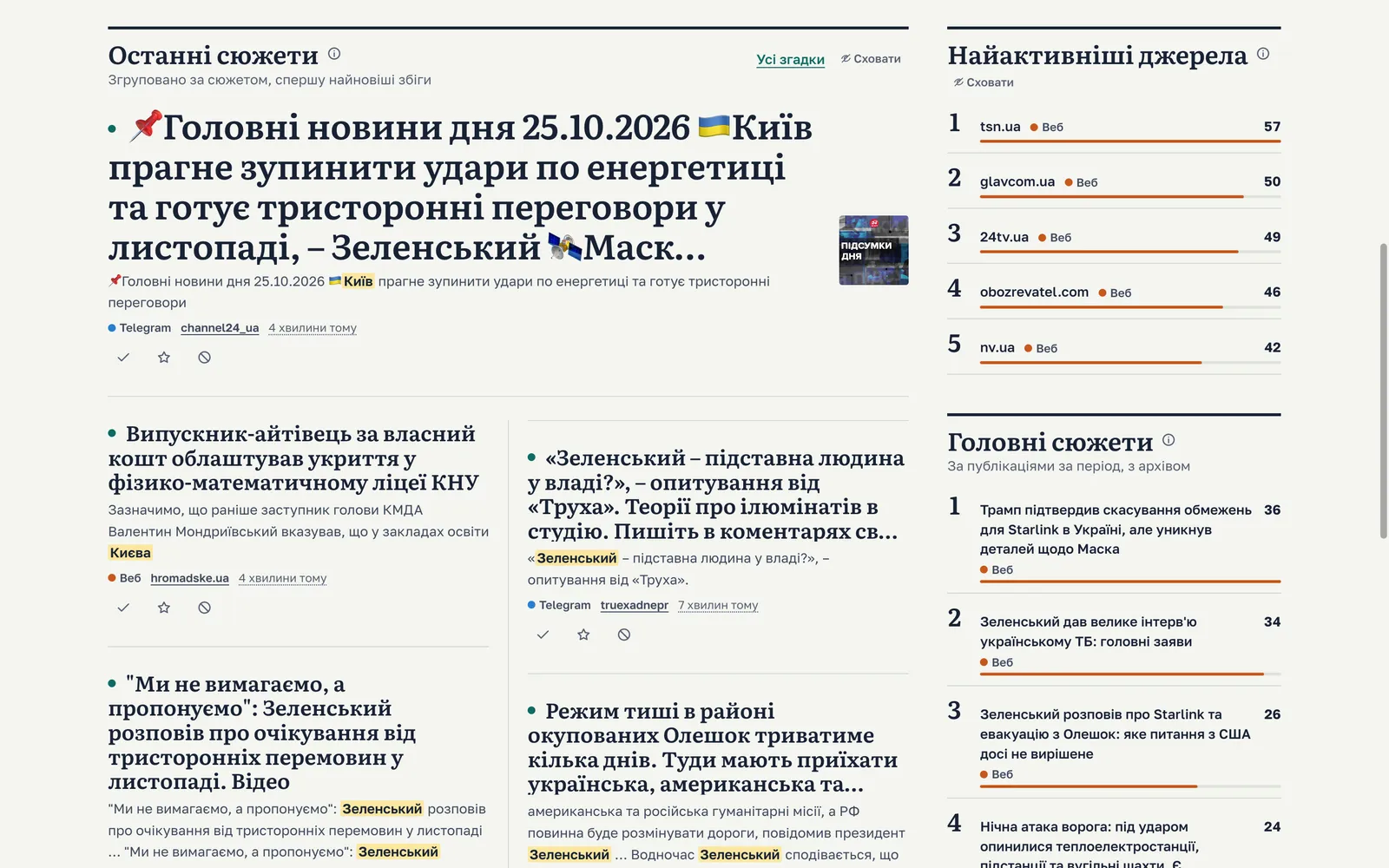
An alert, by e-mail or in Telegram, carries the title of the publication, the platform, when it was matched, the lead, the highlighted fragments with your words, the link to the original and a link that opens the mentions in the cabinet.
How many alerts arrive depends on two rules:
- One alert per story. With the project setting Collapse reprints into one story on (the default), a story sends one alert, for its first mention in the project. Reprints of the same news still appear in the feed but are not sent. With the setting off, every mention is sent.
- Archive finds send nothing. A new or changed query also searches the recent archive. What it finds there arrives already marked as read and sends no alerts or webhooks, so adding a query does not flood the chat with old news.
Shared labels: who has handled what
Every mention has a team label, and it is shared: when one person changes it, others see it at once.
- New: nobody in the team has read it yet.
- Read: someone has opened or marked it.
- Important: worth attention or follow-up; it counts as read.
- Irrelevant: not about you; it is greyed out.
Labels change only the Unread count, not the other figures, the chart, alerts or webhooks. One publication found by two queries has two labels, one per match, and each is set separately.
A simple routine: one person goes through New each morning and marks what matters as Important; the team works from there.
A report in Excel
The export builds one Excel file from the mentions of the workspace. You choose:
- Dates: the first and the last day, as Kyiv calendar days;
- Projects, Platforms (web or Telegram) and State (the team labels), each empty for all;
- Origin: live finds, archive finds or both;
- Sheets, from six:
| Sheet | What it holds |
|---|---|
| Publications | One row per publication, with every project and query that found it. |
| Matches | One row per mention, with its project, query and team label. |
| Stories | Each story with its publications in the export and its first publication. |
| Sources | Each source with its publications in the export. |
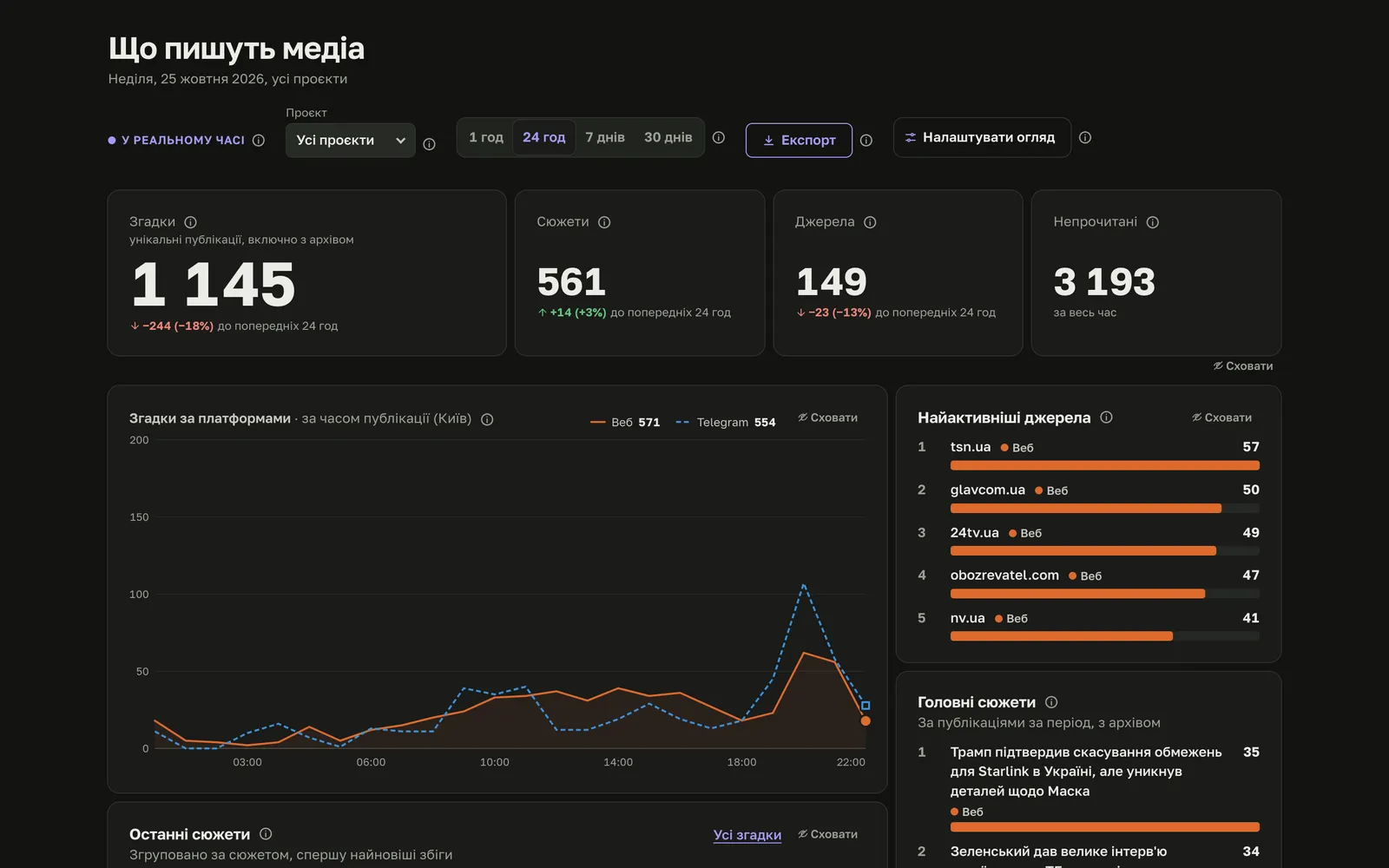
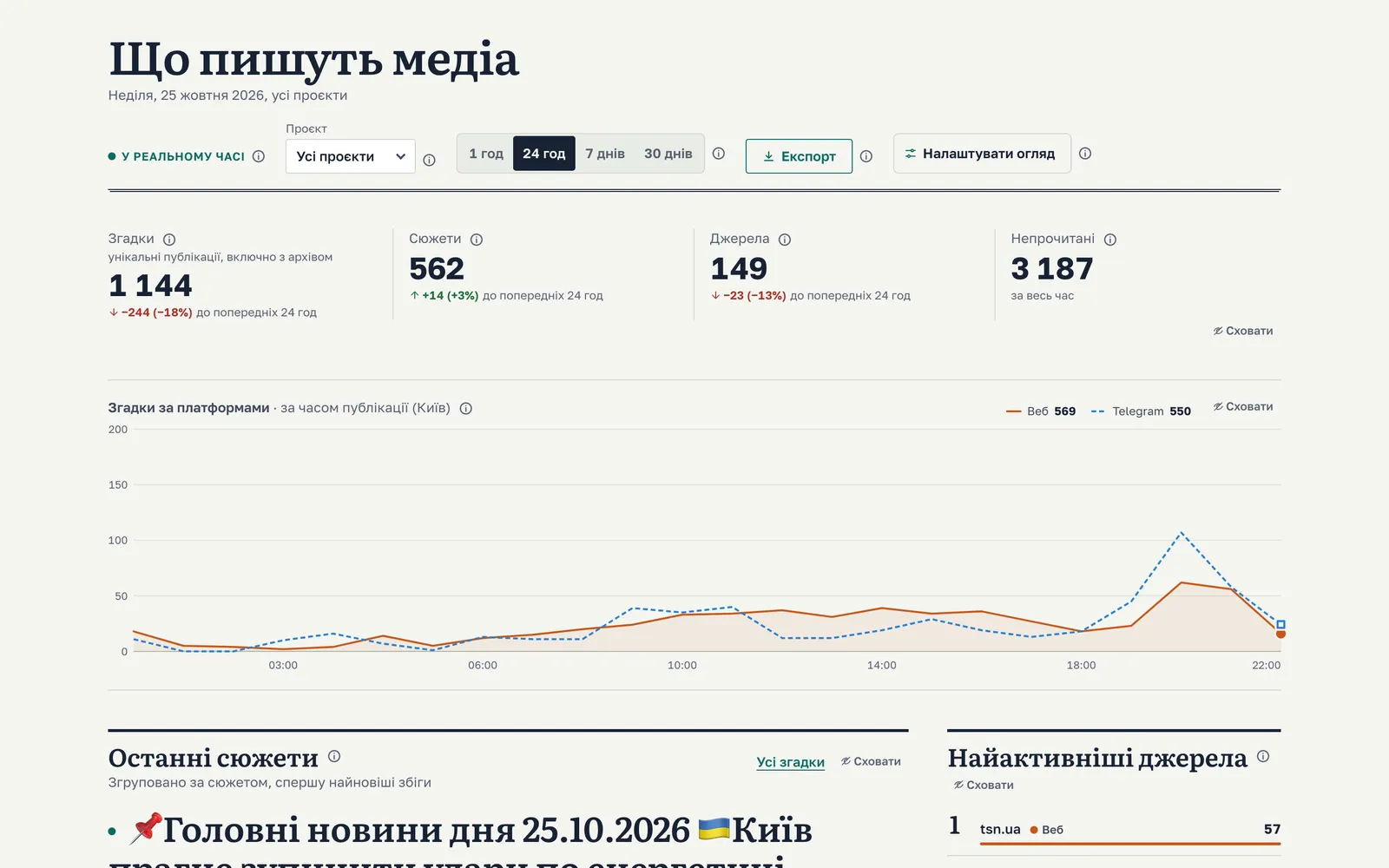
| Summary | The dashboard figures for the range and the publications per day by platform. |
| Parameters | The filters, who exported and when. |
The file is built in the background, and you get a notification in the cabinet and an e-mail when it is ready. It has real Excel dates in Kyiv time, column filters and clickable links. It holds titles, leads and highlighted fragments, not the full texts of publications.
For a recurring report, save the settings as a template: everyone in the workspace who may export can then run it with one click. With Move the dates to end today when run on, each run covers the same number of days ending today, which suits a weekly report. A template does not run by itself; someone starts it.
A word on sharing: the download link works without signing in, so anyone who has it can download the file. It works only until the file is deleted; the Export page shows that time under Available until. Treat the link as private and share the downloaded file instead.
A typical weekly report for management could be: the last seven days, all projects, State set to Important, the sheets Stories, Sources and Summary.
Webhooks for teams with their own systems
If your team has its own database, CRM or bot, a webhook sends each new mention of a project there as a POST request to a public https address. There is no public API to request data; webhooks push mentions as they arrive.
- Signed. Each request is signed with HMAC-SHA256 using the webhook's secret. The secret is shown once, when you add the webhook or rotate the secret. The signature is in the X-MM-Signature header, computed over the timestamp from the X-MM-Timestamp header, a dot and the raw request body. Check it before you trust the request.
- Retried. Any 2xx answer counts as delivered; otherwise the delivery is retried with growing pauses. After 50 deliveries in a row fail for good, the webhook pauses until you resume it.
- At least once. The same delivery can arrive twice, so ignore a repeated X-MM-Delivery-Id header.
- Testable. Send test delivers one signed webhook.test event, so you can check your server before real mentions arrive.
Webhooks follow the same rules as alerts: one per story with grouping on, and none for archive finds.
Setup in order
- Decide who needs alerts: everyone, or a selected list.
- Add our bot to the team's Telegram chat and paste its ID.
- Agree on the labels: who goes through New and what counts as Important.
- Save an export template for the report you send regularly.
- If you have your own system, add a webhook and send a test.
All of this is part of MediaMonitor monitoring. Start with MediaMonitor to set it up for your team.